Summaries produced by artificial intelligence began to occupy a prominent space in Google searches. Displayed before traditional links, the so-called AI-Created Overview brings together information from different pages and delivers a ready response to the user. Although the feature can speed up some searches, it is also subject to criticism. In addition to possibly presenting inaccurate information, the tool reduces the need to access websites used as a source, which can affect the audience and revenue of portals, blogs and other content producers. Those who prefer to consult directly the pages found by the search engine can change the Google Chrome configuration to prioritize only the traditional results from the “Web” tab. The procedure is simple and prevents artificial intelligence summaries from appearing at the top of searches. How to remove AI summaries from searches in Chrome Open Google Chrome and click the three-dot icon located in the top-right corner of the screen. Then, access “Settings” and select the “Search engine” option, available in the side menu. Click “Manage search engines and site search.” In the area called “Site Search”, select “Add”. Fill in the fields as follows: Name: Google/Web Shortcut: https://www.google.com/ URL with %s in place of the query: {google:baseURL}search?udm=14&q=%s Then click “Add”. The new Google/Web engine will appear in the list of site searches. Click on the three dots next to it and choose the “Make default” option. As of this change, searches performed by Chrome will be directed to Google's “Web” tab, which displays traditional links without presenting the AI-Created Overview.
How to Turn Off Google AI Summaries and Switch Back to Traditional Links
Summaries produced by artificial intelligence began to occupy a prominent space in Google searches. Displayed before traditional links, the so-called AI-Created Overview brings together information from different pages and delivers a ready...
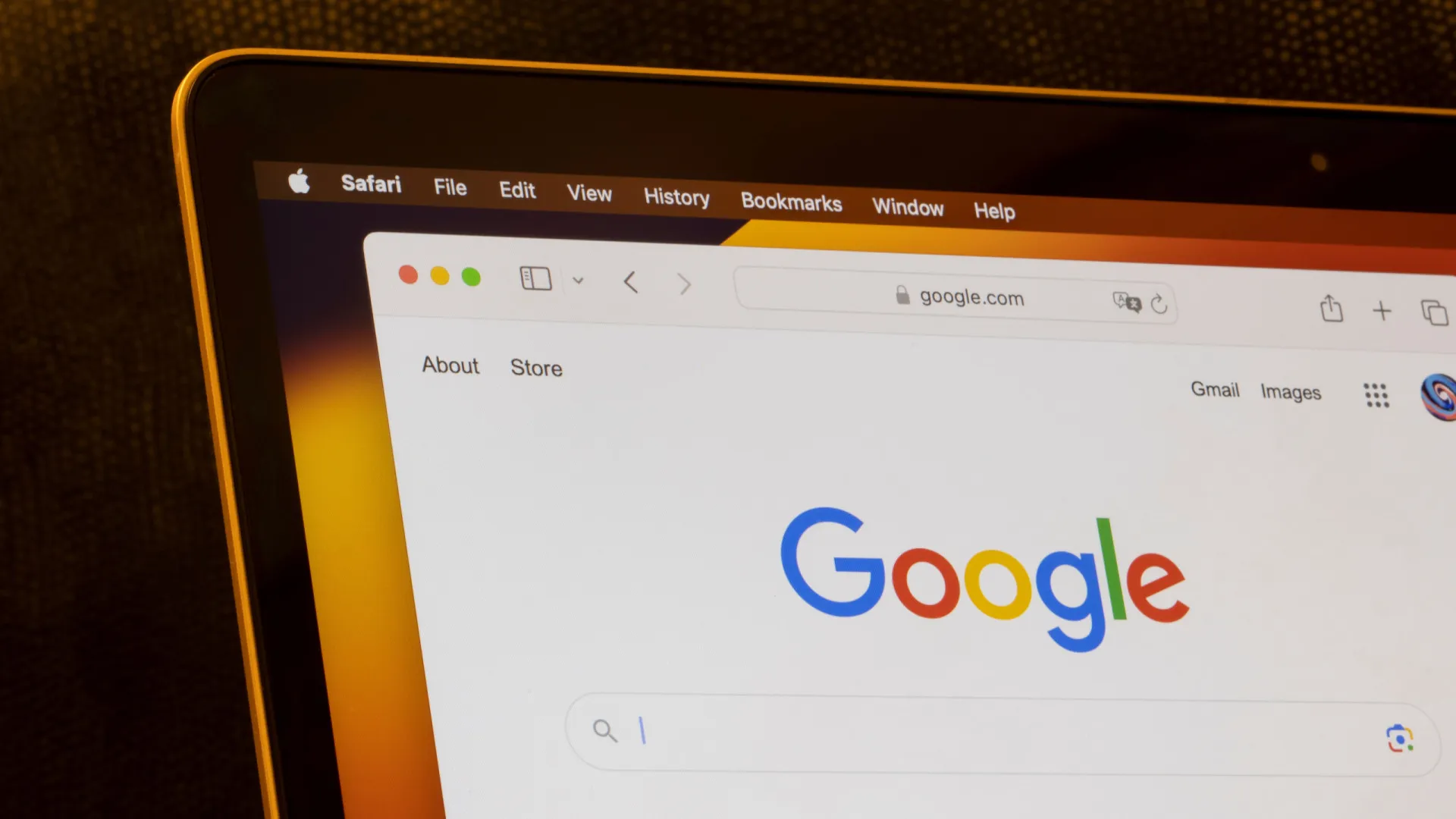
In addition to possibly presenting inaccurate information, the tool reduces the need to access websites used as a source, which can affect the audience and revenue of portals, blogs and other content producers. Those who prefer to consult directly the pages found by the search engine can change the Google Chrome configuration to prioritize only the...
- The procedure is simple and prevents artificial intelligence summaries from appearing at the top of searches.
- How to remove AI summaries from searches in Chrome Open Google Chrome and click the three-dot icon located in the top-right corner of the screen.
Editorial reading aid based only on information contained in this story and its identified source.
Summaries produced by artificial intelligence began to occupy a prominent space in Google searches. Displayed before traditional links, the so-called AI-Created Overview brings together information from different pages and delivers a ready response to the user.
Although the feature can speed up some searches, it is also subject to criticism. In addition to possibly presenting inaccurate information, the tool reduces the need to access websites used as a source, which can affect the audience and revenue of portals, blogs and other content producers.
Those who prefer to consult directly the pages found by the search engine can change the Google Chrome configuration to prioritize only the traditional results from the “Web” tab. The procedure is simple and prevents artificial intelligence summaries from appearing at the top of searches.
How to remove AI summaries from searches in Chrome
Open Google Chrome and click on the three dots icon located in the upper right corner of the screen.
Then, access “Settings” and select the “Search engine” option, available in the side menu.
Click “Manage search engines and site search.” In the area called “Site Search”, select “Add”.
Fill in the fields as follows:
Name: Google/Web
Shortcut: https://www.google.com/
URL with %s in place of the query:{google:baseURL}search?udm=14&q=%s
Then click “Add”.
The new Google/Web engine will appear in the list of site searches. Click on the three dots next to it and choose the “Make default” option.
As of this change, searches performed by Chrome will be directed to Google's “Web” tab, which displays traditional links without presenting the AI-Created Overview.
© Notícias ao Minuto
Galaxy Ring, Samsung's ring, will detect sleep apnea
A Samsung executive announced during the most recent edition of the Unpacked event that the Galaxy Ring will have the ability to detect sleep apnea. The functionality will be launched later this year.